
Mcp Obsidian
by
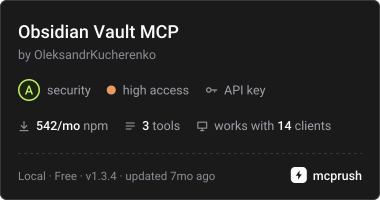
Provides an MCP server that connects to an Obsidian vault through the Local REST API, exposing note content retrieval, search, and semantic search capabilities to AI assistants via a lightweight, fast Bun‑based implementation.
Mcp Obsidian Overview
What is Mcp Obsidian about?
Mcp Obsidian creates a bridge between an Obsidian vault and AI tools using the Model Context Protocol. It runs a local REST API client that talks to the Obsidian Local REST API and offers three primary tools – get_note_content, obsidian_search, and obsidian_semantic_search – together with a URI‑based resource for direct note access.
How to use Mcp Obsidian?
- Enable the Local REST API in the Obsidian desktop application and obtain the API key.
- Install the MCP server with npm (preferred via
npx):
Set the required environment variables, e.g.npx -y @oleksandrkucherenko/mcp-obsidianexport API_KEY="<YOUR_OBSIDIAN_API_KEY>" export API_URLS='["https://127.0.0.1:27124"]' - Add the server to your AI CLI (Claude, Gemini, Codex, etc.) using the provided configuration snippets.
- Invoke the tools from the AI assistant, for example:
claude "Search my Obsidian vault for monitoring tools".
Key features of Mcp Obsidian
- Fast and lightweight: Re‑implemented with Bun for reduced footprint.
- Automatic failover via
API_URLS– tests multiple URLs in parallel and selects the fastest. - Multiple transports: default stdio, optional HTTP JSON‑RPC with SSE streaming.
- Health endpoint (
/health) for monitoring server status. - Docker images available for isolated deployment.
- Rich tooling: ready‑made configurations for Claude, Gemini, OpenCode, Kilo Code, Codex, and GitHub Copilot.
Use cases of Mcp Obsidian
- Knowledge retrieval: AI assistants can fetch specific notes or metadata during a conversation.
- Dynamic research assistance: Perform keyword or semantic searches across a personal knowledge base.
- Automated summarisation: Generate reports, tables, or briefs by pulling relevant vault content.
- IDE integration: Provide context‑aware code suggestions using notes stored in Obsidian.
- Cross‑platform workflow: Works in WSL2, Docker, macOS, Linux, and Windows environments.
FAQ
Q: Do I need to run Obsidian on the same machine? A: The Local REST API can be accessed from any network interface, so Docker containers, WSL2, or remote hosts can connect as long as the firewall allows port 27124.
Q: How is authentication handled?
A: The API key from Obsidian is passed via the API_KEY environment variable. For HTTP transport, an optional bearer token (MCP_HTTP_TOKEN) can be configured.
Q: Can I use the server without Docker?
A: Yes. The npm package can be executed directly with npx, which runs the Bun‑based server locally.
Q: What if the primary URL is down?
A: When API_URLS is set, the server automatically fails over to the next reachable endpoint.
Q: How do I monitor the server?
A: Call http://localhost:3000/health or use the built‑in getHealthStatus() function for detailed metrics.
Mcp Obsidian's README
mcp-obsidian
Deployed / Usage







CI/CD Status


- mcp-obsidian
MCP Tools & Resources
This MCP server exposes the following tools and resources to AI assistants:
Tools
| Tool | Description | Parameters |
|---|---|---|
get_note_content |
Retrieve content and metadata of an Obsidian note | filePath (string) - Path to the note |
obsidian_search |
Search notes using a query string | query (string) - Search query |
obsidian_semantic_search |
Semantic search for notes | query (string) - Search query |
Resources
| Resource | URI Pattern | Description |
|---|---|---|
| Obsidian Note | obsidian://{path} |
Access notes via URI (e.g., obsidian://Daily/2025-01-16.md) |
Quick Test
# 1. Set your Obsidian API key
export OBSIDIAN_API_KEY="your-obsidian-rest-api-key"

# 2. Add MCP server and test (Claude Code)
claude mcp add obsidian -- bunx -y @oleksandrkucherenko/mcp-obsidian
claude "Search my Obsidian vault for monitoring tools, summarize findings"

# 2. Alternative: Codex CLI
codex mcp add obsidian --command "bunx -y @oleksandrkucherenko/mcp-obsidian"
codex "Find notes about logging frameworks and create a comparison table"
Example use-case: "Find all tools in my Obsidian vault for tracking logs and metrics, make a summary report" — the AI searches your vault, finds notes about OpenTelemetry, Datadog, Prometheus, etc., and generates a structured summary.
For other CLI tools (Gemini, OpenCode, Kilo Code, Copilot), see Manual Testing Guide.

Configure MCP
Multi-URL Configuration (Recommended)
Use API_URLS for automatic failover and self-healing. The server tests all URLs in parallel, selects the fastest one, and automatically reconnects on failure.
{
  "mcpServers": {
    "obsidian": {
      "command": "docker",
      "args": [
        "run",
        "--name", "mcp-obsidian",
        "--rm",
        "-i",  // Keep STDIN open for stdio transport
        "-p", "3000:3000",
        "-e", "API_KEY",
        "-e", "API_URLS",
        "-e", "DEBUG", // for logs
        "ghcr.io/oleksandrkucherenko/obsidian-mcp:latest"
      ],
      "env": {
        "API_KEY": "<secret_key>",
        // JSON array - automatically tests and selects fastest URL
        "API_URLS": "[\"https://127.0.0.1:27124\",\"https://172.26.32.1:27124\",\"https://host.docker.internal:27124\"]",
        "DEBUG": "mcp:*"
      }
    }
  }
}
Self-Healing Features:
- ✅ Parallel URL testing on startup
- ✅ Automatic selection of fastest URL
- ✅ Health monitoring every 30 seconds
- ✅ Automatic failover on connection loss
- ✅ Exponential backoff to prevent thrashing
Available transports:
stdio- Standard input/output (default, best for local MCP clients)http- HTTP JSON-RPC with SSE streaming (best for remote access)
WSL2 Example:
# Automatically determine WSL gateway IP
export WSL_GATEWAY_IP=$(ip route show | grep -i default | awk '{ print $3}')

# Configure with multiple fallback URLs
API_URLS='["https://127.0.0.1:27124", "https://'$WSL_GATEWAY_IP':27124", "https://host.docker.internal:27124"]'
HTTP Transport Configuration
The MCP server supports HTTP transport for remote access with automatic URL failover:
{
  "mcpServers": {
    "obsidian-http": {
      "command": "docker",
      "args": [
        "run",
        "--name", "mcp-obsidian-http",
        "--rm",
        "-p", "3000:3000",
        "-e", "API_KEY",
        "-e", "API_URLS",
        "-e", "MCP_HTTP_PATH",
        "ghcr.io/oleksandrkucherenko/obsidian-mcp:latest"
      ],
      "env": {
        "API_KEY": "<secret_key>",
        "API_URLS": "[\"https://127.0.0.1:27124\",\"https://172.26.32.1:27124\",\"https://host.docker.internal:27124\"]",
        "MCP_HTTP_PATH": "/mcp" // endpoint path (default is: /mcp)
      }
    }
  }
}
Decoupled Configuration with Authentication
# Automatically determine WSL gateway IP
export WSL_GATEWAY_IP=$(ip route show | grep -i default | awk '{ print $3}')

# Configure with multiple fallback URLs
API_URLS='["https://127.0.0.1:27124", "https://'$WSL_GATEWAY_IP':27124", "https://host.docker.internal:27124"]'

# run MCP server on docker separately from IDE
docker run --name mcp-obsidian-http --rm \
  -p 3000:3000 \
  -e API_KEY="<secret_key>" \
  -e API_URLS="${API_URLS}" \
  -e MCP_HTTP_TOKEN=<your-secret-token-here> \
  ghcr.io/oleksandrkucherenko/obsidian-mcp:latest
{
  "mcpServers": {
    "obsidian": {
      "type": "streamable-http",
      "url": "http://localhost:3000/mcp",
      "headers": {
        "Authorization": "Bearer <your-secret-token-here>"
      }
    }
  }
}
Clients must include the Authorization header:
Authorization: Bearer your-secret-token-here
Stdio Transport Configuration
For local development with stdio transport (default):
{
  "mcpServers": {
    "obsidian": {
      "command": "docker",
      "args": [
        "run",
        "--name", "mcp-obsidian-windsurf",
        "--interactive",
        "--rm",
        "-e", "API_KEY",
        "-e", "API_URLS",
        "-e", "DEBUG",
        "ghcr.io/oleksandrkucherenko/obsidian-mcp:latest"
      ],
      "env": {
        "API_KEY": "<secret_key>",
        "API_URLS": "[\"https://127.0.0.1:27124\",\"https://172.26.32.1:27124\"]",
        "DEBUG": "mcp:*" // default: disabled logs
      }
    }
  }
}
-
--rm- Automatically remove the container and its associated anonymous volumes when it exits -
-i, --interactive- Keep STDIN open -
-e, --env- Set environment variables -
--name string- Assign a name to the container -
-p, --publish- Publish container port to host
Legacy Single-URL Configuration
For backward compatibility, you can still use single-URL configuration with API_HOST and API_PORT:
{
  "mcpServers": {
    "obsidian": {
      "command": "docker",
      "args": [
        "run",
        "--name", "mcp-obsidian",
        "--rm",
        "-i",
        "-e", "API_KEY",
        "-e", "API_HOST",
        "-e", "API_PORT",
        "ghcr.io/oleksandrkucherenko/obsidian-mcp:latest"
      ],
      "env": {
        "API_KEY": "<secret_key>",
        "API_HOST": "https://172.26.32.1",  // single URL without failover
        "API_PORT": "27124"
      }
    }
  }
}
Note: Single-URL configuration does not provide automatic failover or health monitoring. Use API_URLS for production deployments.
Health Endpoint
When HTTP transport is enabled, the server exposes a health check endpoint at /health:
curl http://localhost:3000/health
Response:
{
  "status": "healthy",
  "timestamp": "2025-01-12T12:00:00.000Z",
  "transport": "http",
  "authEnabled": false
}
For comprehensive health status including Obsidian API connection and all transports, you can use the getHealthStatus() function which returns:
{
  "healthy": true,
  "obsidian": {
    "connected": true,
    "url": "https://obsidian:27124",
    "lastCheck": 1705065600000
  },
  "transports": {
    "stdio": { "running": true, "enabled": true },
    "http": { "running": true, "enabled": true }
  },
  "uptime": 3600,
  "timestamp": 1705065600000
}
CLI Tools Configuration
This section shows how to configure popular AI CLI tools to use the MCP Obsidian server.
# MacOs or Linux
curl -fsSL https://bun.sh/install | bash

# Windows
powershell -c "irm bun.sh/install.ps1 | iex"
Claude Code CLI
Docker:
# Create mcp.json configuration
cat > mcp.json << 'EOF'
{
  "mcpServers": {
    "obsidian": {
      "command": "docker",
      "args": ["run", "--rm", "-i", "-e", "API_KEY", "-e", "API_URLS", "ghcr.io/oleksandrkucherenko/obsidian-mcp:latest"],
      "env": {
        "API_KEY": "<your-obsidian-api-key>",
        "API_URLS": "[\"https://host.docker.internal:27124\"]"
      }
    }
  }
}
EOF

# Run Claude with MCP config
claude --mcp-config ./mcp.json
NPX/Bunx:
cat > mcp.json << 'EOF'
{
  "mcpServers": {
    "obsidian": {
      "command": "bunx",
      "args": ["-y", "@oleksandrkucherenko/mcp-obsidian"],
      "env": {
        "API_KEY": "<your-obsidian-api-key>",
        "API_URLS": "[\"https://127.0.0.1:27124\"]"
      }
    }
  }
}
EOF

claude --mcp-config ./mcp.json
Gemini CLI
Docker:
gemini mcp add \
  -e API_KEY=<your-obsidian-api-key> \
  -e API_URLS='["https://host.docker.internal:27124"]' \
  obsidian \
  docker run --rm -i ghcr.io/oleksandrkucherenko/obsidian-mcp:latest
NPX/Bunx:
gemini mcp add \
  -e API_KEY=<your-obsidian-api-key> \
  -e API_URLS='["https://127.0.0.1:27124"]' \
  obsidian \
  bunx -y @oleksandrkucherenko/mcp-obsidian
HTTP Transport (remote server):
gemini mcp add --transport http obsidian-http http://localhost:3000/mcp
List and manage servers:
gemini mcp list
gemini mcp remove obsidian
OpenCode CLI
Create opencode.json in your project root:
Docker:
{
  "mcp": {
    "obsidian": {
      "type": "local",
      "command": ["docker", "run", "--rm", "-i",
        "-e", "API_KEY", "-e", "API_URLS",
        "ghcr.io/oleksandrkucherenko/obsidian-mcp:latest"],
      "environment": {
        "API_KEY": "{env:API_KEY}",
        "API_URLS": "[\"https://host.docker.internal:27124\"]"
      },
      "enabled": true
    }
  }
}
NPX/Bunx:
{
  "mcp": {
    "obsidian": {
      "type": "local",
      "command": ["bunx", "-y", "@oleksandrkucherenko/mcp-obsidian"],
      "environment": {
        "API_KEY": "{env:API_KEY}",
        "API_URLS": "[\"https://127.0.0.1:27124\"]"
      },
      "enabled": true
    }
  }
}
HTTP Transport:
{
  "mcp": {
    "obsidian-http": {
      "type": "remote",
      "url": "http://localhost:3000/mcp",
      "enabled": true
    }
  }
}
Kilo Code CLI
Create .kilocode/mcp.json in your project or ~/.kilocode/cli/global/settings/mcp_settings.json globally:
Docker:
{
  "mcpServers": {
    "obsidian": {
      "command": "docker",
      "args": ["run", "--rm", "-i", "-e", "API_KEY", "-e", "API_URLS",
        "ghcr.io/oleksandrkucherenko/obsidian-mcp:latest"],
      "env": {
        "API_KEY": "<your-obsidian-api-key>",
        "API_URLS": "[\"https://host.docker.internal:27124\"]"
      }
    }
  }
}
NPX/Bunx:
{
  "mcpServers": {
    "obsidian": {
      "command": "bunx",
      "args": ["-y", "@oleksandrkucherenko/mcp-obsidian"],
      "env": {
        "API_KEY": "<your-obsidian-api-key>",
        "API_URLS": "[\"https://127.0.0.1:27124\"]"
      }
    }
  }
}
HTTP Transport:
{
  "mcpServers": {
    "obsidian-http": {
      "type": "streamable-http",
      "url": "http://localhost:3000/mcp",
      "headers": {
        "Authorization": "Bearer <your-token>"
      }
    }
  }
}
Codex CLI
Docker:
# Register MCP server
codex mcp add obsidian \
  --command "docker run --rm -i -e API_KEY -e API_URLS ghcr.io/oleksandrkucherenko/obsidian-mcp:latest" \
  --env API_KEY=<your-obsidian-api-key> \
  --env 'API_URLS=["https://host.docker.internal:27124"]'
NPX/Bunx:
codex mcp add obsidian \
  --command "bunx -y @oleksandrkucherenko/mcp-obsidian" \
  --env API_KEY=<your-obsidian-api-key> \
  --env 'API_URLS=["https://127.0.0.1:27124"]'
GitHub Copilot CLI
Create ~/.copilot/mcp-config.json (or .copilot/mcp-config.json in repo root):
Docker:
{
  "mcpServers": {
    "obsidian": {
      "type": "local",
      "command": "docker",
      "args": ["run", "--rm", "-i", "-e", "API_KEY", "-e", "API_URLS",
        "ghcr.io/oleksandrkucherenko/obsidian-mcp:latest"],
      "env": {
        "API_KEY": "${OBSIDIAN_API_KEY}",
        "API_URLS": "[\"https://host.docker.internal:27124\"]"
      },
      "tools": ["*"]
    }
  }
}
NPX/Bunx:
{
  "mcpServers": {
    "obsidian": {
      "type": "local",
      "command": "bunx",
      "args": ["-y", "@oleksandrkucherenko/mcp-obsidian"],
      "env": {
        "API_KEY": "${OBSIDIAN_API_KEY}",
        "API_URLS": "[\"https://127.0.0.1:27124\"]"
      },
      "tools": ["*"]
    }
  }
}
Note: Copilot CLI v0.0.340+ requires ${VAR} syntax for environment variable expansion. Set OBSIDIAN_API_KEY in your shell before running.
Quick Reference
| CLI Tool | Config File | Docker Support | HTTP Transport |
|---|---|---|---|
| Claude Code | mcp.json |
✅ | ✅ |
| Gemini | settings.json |
✅ | ✅ |
| OpenCode | opencode.json |
✅ | ✅ |
| Kilo Code | .kilocode/mcp.json |
✅ | ✅ |
| Codex | CLI commands | ✅ | ✅ |
| Copilot | ~/.copilot/mcp-config.json |
✅ | ✅ |
For detailed testing and verification, see Manual Testing Guide.
Setup and Troubleshooting
Setup
- Run Obsidian Desktop Application and enable Local REST API in Settings.

This setting will allow you to connect to the Local REST API from any network interface (not only localhost, which is critical for WSL2 setup).
-
Copy the API Key from Obsidian Settings; you will need it for the MCP configuration.
-
Verify that the Obsidian Local REST API is running and accessible from your machine.
-
Next Step is always to verify the network setup on your machine (firewall rules, etc).
Verify that the Obsidian REST API is running (Windows Host, MacOS, Linux)
Run in Windows CMD terminal:
# windows CMD, verify that port is listening (that rest api is running)
netstat -an | findstr 27124
# Expected output:
#   TCP    0.0.0.0:27124           0.0.0.0:0               LISTENING

# Verify that Obsidian Local REST API is working
curl --insecure https://localhost:27124
wget --no-check-certificate -S https://localhost:27124
http --verify=no https://localhost:27124
Expected REST API response:
{
  "status": "OK",
  "manifest": {
    "id": "obsidian-local-rest-api",
    "name": "Local REST API",
    "version": "3.2.0",
    "minAppVersion": "0.12.0",
    "description": "Get, change or otherwise interact with your notes in Obsidian via a REST API.",
    "author": "Adam Coddington",
    "authorUrl": "https://coddingtonbear.net/",
    "isDesktopOnly": true,
    "dir": ".obsidian/plugins/obsidian-local-rest-api"
  },
  "versions": {
    "obsidian": "1.8.10",
    "self": "3.2.0"
  },
  "service": "Obsidian Local REST API",
  "authenticated": false
}
WSL2, Docker hosted on Ubuntu
Run inside the WSL2 Ubuntu Terminal:
export WSL_GATEWAY_IP=$(ip route show | grep -i default | awk '{ print $3}')
echo $WSL_GATEWAY_IP # expected something like: 172.26.32.1

# Verify that Obsidian Local REST API is working
curl --insecure https://$WSL_GATEWAY_IP:27124
wget --no-check-certificate -S https://$WSL_GATEWAY_IP:27124
http --verify=no https://$WSL_GATEWAY_IP:27124
Verify Windows Firewall
Run GUI and Setup Manual The Rules:
# Windows Defender Firewall / Inbound Rules. Press Win+R and type WF.msc or firewall.cpl
WF.msc
firewall.cpl # and then press 'Advanced settings'
Or Run in Windows PowerShell as Administrator:
# Add firewall rule to allow port 27124 (Run in Admin PowerShell)
New-NetFirewallRule -DisplayName "WSL2 Obsidian REST API" -Direction Inbound -LocalPort 27123,27124 -Protocol TCP -Action Allow
Or Run in Windows CMD terminal:
# check firewall rules (CMD) that manage 27124 port
netsh advfirewall firewall show rule name=all | findstr /C:"Rule Name" /C:"LocalPort" /C:"RemotePort" | findstr /C:"27124"

# display rules that has WSL2 keyword in own name
netsh advfirewall firewall show rule name=all | grep -A 13 WSL2

# display rule definition by port number (4 line after, 9 lines before)
netsh advfirewall firewall show rule name=all | grep -A 4 -B 9 27124
Disable/Enable Firewall
Execute in Windows PowerShell as Administrator:
# Temporarily turn off firewall (for testing ONLY, not recommended for regular use)
Set-NetFirewallProfile -Profile Domain,Public,Private -Enabled False

# Restore Firewall state
Set-NetFirewallProfile -Profile Domain,Public,Private -Enabled True
Verify Connectivity on BusyBox Container
These steps allow us to confirm that the network setup is correct and the container can connect to the Local REST API.
Execute inside the WSL2 Ubuntu terminal:
export WSL_GATEWAY_IP=$(ip route | grep default | awk '{print $3}')
echo "Windows host IP from WSL2: $WSL_GATEWAY_IP"
# Output:
#   Windows host IP from WSL2: 172.26.32.1

# run docker container to verify the connectivity from Docker inside
docker run --rm -it --network=host busybox sh

# inside the container run:
which wget
# /bin/wget

export WINDOWS_HOST_IP="172.26.32.1"
echo $WINDOWS_HOST_IP
# 172.26.32.1

# try to connect to the Local REST API
wget -qO- --no-check-certificate "https://$WINDOWS_HOST_IP:27124"
wget -qO- --no-check-certificate https://172.26.32.1:27124
Dockerized Obsidian
Mcp Obsidian Reviews
Login Required
Please log in to share your review and rating for this MCP.
Similar MCP Servers like Mcp Obsidian
Explore related MCPs that share similar capabilities and solve comparable challenges
Memory
Officialby modelcontextprotocol
A basic implementation of persistent memory using a local knowledge graph. This lets Claude remember information about the user across chats.
Cognee
by topoteretes
Provides dynamic memory for AI agents through modular ECL (Extract, Cognify, Load) pipelines, enabling seamless integration with graph and vector stores using minimal code.
Basic Memory
by basicmachines-co
Enables persistent, local‑first knowledge management by allowing LLMs to read and write Markdown files during natural conversations, building a traversable knowledge graph that stays under the user’s control.
Agentset
by agentset-ai
Provides an open‑source platform to build, evaluate, and ship production‑ready retrieval‑augmented generation (RAG) and agentic applications, offering end‑to‑end tooling from ingestion to hosting.
Obsidian Model Context Protocol
by smithery-ai
Provides read and search capabilities for Markdown notes in an Obsidian vault for Claude Desktop and other MCP clients.
Mcp Server Chatsum
by chatmcp
Summarize chat messages by querying a local chat database and returning concise overviews.
Minima
by dmayboroda
Provides on‑premises conversational retrieval‑augmented generation (RAG) with configurable Docker containers, supporting fully local execution, ChatGPT‑based custom GPTs, and Anthropic Claude integration.
Mcp Server Qdrant
Officialby qdrant
Provides a Model Context Protocol server that stores and retrieves semantic memories using Qdrant vector search, acting as a semantic memory layer.
MCP Memory Service
by doobidoo
Provides a universal memory service with semantic search, intelligent memory triggers, OAuth‑enabled team collaboration, and multi‑client support for Claude Desktop, Claude Code, VS Code, Cursor and over a dozen AI applications.