
Claude Mermaid
by
Render and preview Mermaid diagrams with live‑reload, multiple export formats, theme support, and an integrated Claude skill for expert diagram guidance.
Claude Mermaid Overview
What is Claude Mermaid about?
Claude Mermaid provides a Model Context Protocol (MCP) server that renders Mermaid diagram code, opens a live preview in a browser, and automatically refreshes the view as the source changes. It also offers one‑click export to SVG, PNG, or PDF and includes a built‑in Claude skill that suggests best‑practice diagram structures.
How to use Claude Mermaid?
- Install
- As a Claude Code plugin (recommended)
/plugin marketplace add veelenga/claude-mermaid /plugin install claude-mermaid@claude-mermaid - Via npm
npm install -g claude-mermaid - From source
git clone https://github.com/veelenga/claude-mermaid.git
cd claude-mermaid
npm install && npm run build && npm install -g .
- As a Claude Code plugin (recommended)
- Verify registration
If installed via npm, register manually:/mcp # should list "mermaid"claude mcp add --scope user mermaid claude-mermaid claude mcp list - Render a preview (MCP tool
mermaid_preview)
The browser opens at{ "tool": "mermaid_preview", "diagram": "graph LR; A-->B", "preview_id": "example", "format": "svg", "theme": "dark" }http://localhost:3737/exampleand updates automatically when the diagram changes. - Save the diagram (MCP tool
mermaid_save){ "tool": "mermaid_save", "save_path": "./docs/diagram.svg", "preview_id": "example", "format": "svg" }
Key Features
- Live Reload – automatic browser refresh on diagram edits.
- Multiple Export Formats – SVG, PNG, PDF.
- Theme Selection – default, forest, dark, neutral.
- Customizable Dimensions & Scale – width, height, background color.
- Interactive Preview – pan, zoom, reset position.
- Multiple Concurrent Previews – use distinct
preview_ids. - Persistent Working Files – stored under
~/.config/claude-mermaid/live. - Built‑in Claude Skill – expert guidance for diagram creation.
- Cross‑client Compatibility – works with Claude Code, Codex, Cursor, VSCode (Cline), Windsurf, Gemini CLI, and any MCP‑compatible tool.
Use Cases
- Iterative Architecture Design – sketch, refine, and preview system diagrams in real time.
- Documentation Automation – generate up‑to‑date flowcharts and sequence diagrams for README or technical docs.
- Educational Workshops – demonstrate diagram evolution live while teaching Mermaid syntax.
- Rapid Prototyping – create UI navigation maps, data models, or CI/CD pipelines without leaving the editor.
- Team Collaboration – share preview URLs; teammates see updates instantly.
FAQ
Q: "Cannot find package 'puppeteer'"
A: Re‑install the CLI globally (npm install -g claude-mermaid) or reinstall the Claude Code plugin.
Q: "Server not connecting"
A: Verify the binary is available (claude-mermaid -v). Re‑register the server with claude mcp add --scope user mermaid claude-mermaid and check claude mcp list.
Q: "Port already in use"
A: The server scans ports 3737‑3747 and picks a free one. Use lsof -i :3737-3747 to identify conflicting processes.
Q: "Live reload not working" A: Enable debug logging in the MCP config:
{
  "mcpServers": {
    "mermaid": {
      "command": "claude-mermaid",
      "env": { "CLAUDE_MERMAID_LOG_LEVEL": "DEBUG" }
    }
  }
}
Then monitor ~/.config/claude-mermaid/logs/web.log.
Q: "Permission denied on the binary"
A: Ensure the executable flag is set: chmod +x $(which claude-mermaid).
Claude Mermaid's README
Claude Mermaid MCP Server
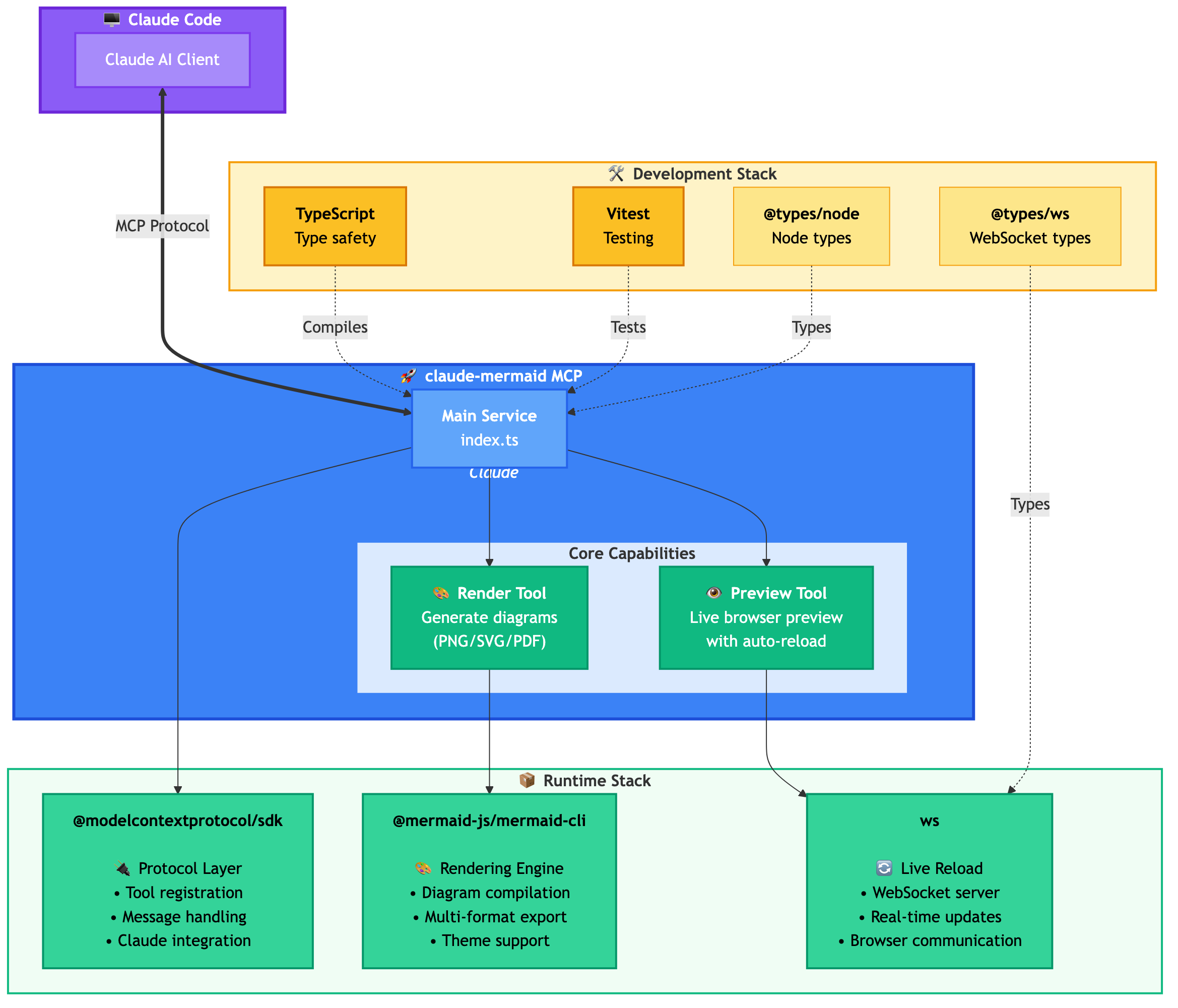
MCP server for rendering Mermaid diagrams in Claude Code with live reload functionality and a built-in skill for expert guidance.
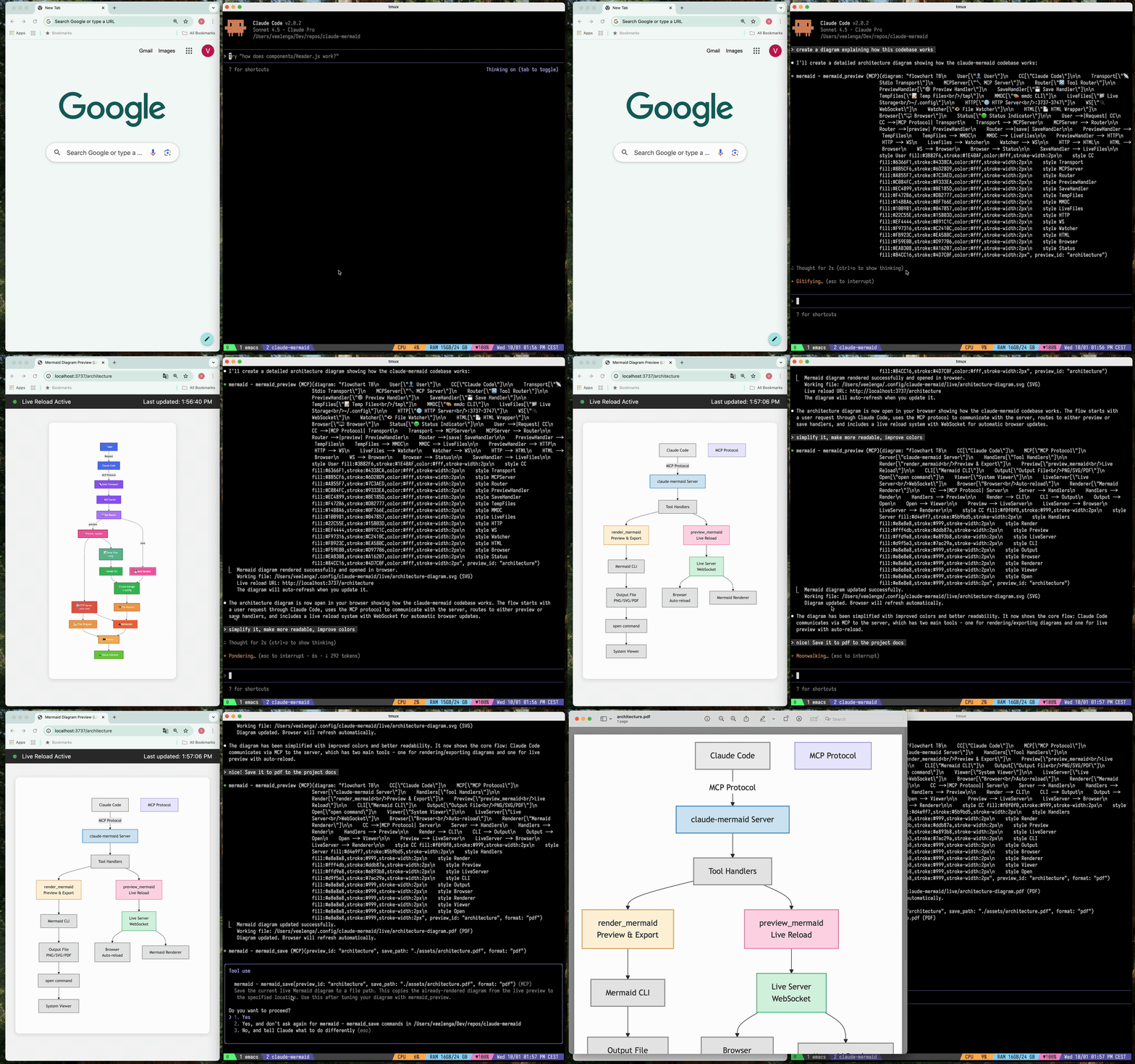
Automatically renders diagrams in your browser with real-time updates as you refine them. Perfect for iterative diagram development and documentation workflows.
✨ Features
- 🔄 Live Reload - Diagrams auto-refresh in your browser as you edit
- 🎨 Multiple Save Formats - Export to SVG, PNG, or PDF
- 🌈 Themes - Choose from default, forest, dark, or neutral themes
- 📐 Customizable - Control dimensions, scale, and background colors
- 🪄 Interactive Preview - Pan diagrams by dragging, zoom with browser controls, reset position with one click
- 🗂️ Multiple Previews - Use
preview_idto work on multiple diagrams simultaneously - 💾 Persistent Working Files - Live previews are stored under
~/.config/claude-mermaid/live - 🤖 Built-in Skill - Includes a Claude skill with best practices and expert guidance for creating diagrams
Architecture
🚀 Quick Start
1. Install
Plugin Install (Recommended)
In Claude Code, add the marketplace and install the plugin:
/plugin marketplace add veelenga/claude-mermaid
/plugin install claude-mermaid@claude-mermaid
Then restart Claude Code to activate the plugin.
From npm:
npm install -g claude-mermaid
From source:
git clone https://github.com/veelenga/claude-mermaid.git
cd claude-mermaid
npm install && npm run build && npm install -g .
2. Verify Installation
Plugin install: The MCP server is configured automatically. Just verify:
/mcp
You should see mermaid in the MCP server list.
npm install: Configure the MCP server manually:
claude mcp add --scope user mermaid claude-mermaid
Then verify:
claude mcp list
You should see mermaid: claude-mermaid - ✓ Connected
🔌 Other MCP Client Configurations
While this server is optimized for Claude Code, it can work with any MCP-compatible client. Here's how to configure it for other popular tools:
Add to your Codex MCP settings file (~/.codex/mcp_settings.json):
{
  "mcpServers": {
    "mermaid": {
      "command": "claude-mermaid"
    }
  }
}
Or configure via Codex CLI:
codex mcp add mermaid claude-mermaid
Add to your Cursor MCP config file (.cursor/mcp.json or settings):
{
  "mcpServers": {
    "mermaid": {
      "command": "claude-mermaid"
    }
  }
}
Or use Cursor's settings UI:
- Open Cursor Settings (Cmd/Ctrl + ,)
- Navigate to MCP Servers
- Add a new server with command:
claude-mermaid
If using the Cline extension for VSCode:
- Open VSCode settings (Cmd/Ctrl + ,)
- Search for "Cline MCP"
- Add to MCP Settings JSON:
{
  "mcpServers": {
    "mermaid": {
      "command": "claude-mermaid"
    }
  }
}
Add to Windsurf's MCP configuration file:
{
  "mcpServers": {
    "mermaid": {
      "command": "claude-mermaid"
    }
  }
}
Configuration location varies by platform:
- macOS:
~/Library/Application Support/Windsurf/mcp.json - Linux:
~/.config/windsurf/mcp.json - Windows:
%APPDATA%\Windsurf\mcp.json
Add to Gemini CLI's MCP configuration file (~/.gemini/mcp.json):
{
  "mcpServers": {
    "mermaid": {
      "command": "claude-mermaid"
    }
  }
}
Or use the Gemini CLI to configure:
gemini config mcp add mermaid --command claude-mermaid
For any MCP-compatible client, use the standard configuration:
{
  "mcpServers": {
    "mermaid": {
      "command": "claude-mermaid"
    }
  }
}
The command claude-mermaid should be available in your PATH after installation.
Note: Some clients may require the full path to the executable:
- Find the path:
which claude-mermaid(Unix/macOS) orwhere claude-mermaid(Windows) - Use absolute path in config:
"command": "/path/to/claude-mermaid"
💡 Usage
Simply ask Claude Code to create Mermaid diagrams naturally. When installed as a plugin, the built-in mermaid-diagrams skill provides expert guidance, best practices, and automatic workflow management.
Basic Examples
"Create a Mermaid diagram showing the user authentication flow"
"Draw a sequence diagram for the payment process"
"Generate a flowchart for the deployment pipeline"
Advanced Examples
With custom formatting:
"Create a dark theme architecture diagram with transparent background"
"Generate a forest theme flowchart and save to ./docs/flow.svg"
With specific output format:
"Create an ER diagram and save as PDF to ./docs/schema.pdf"
"Save the flowchart as PNG to ./docs/flow.png"
Note: Browser always shows SVG for live preview, while saving to your chosen format.
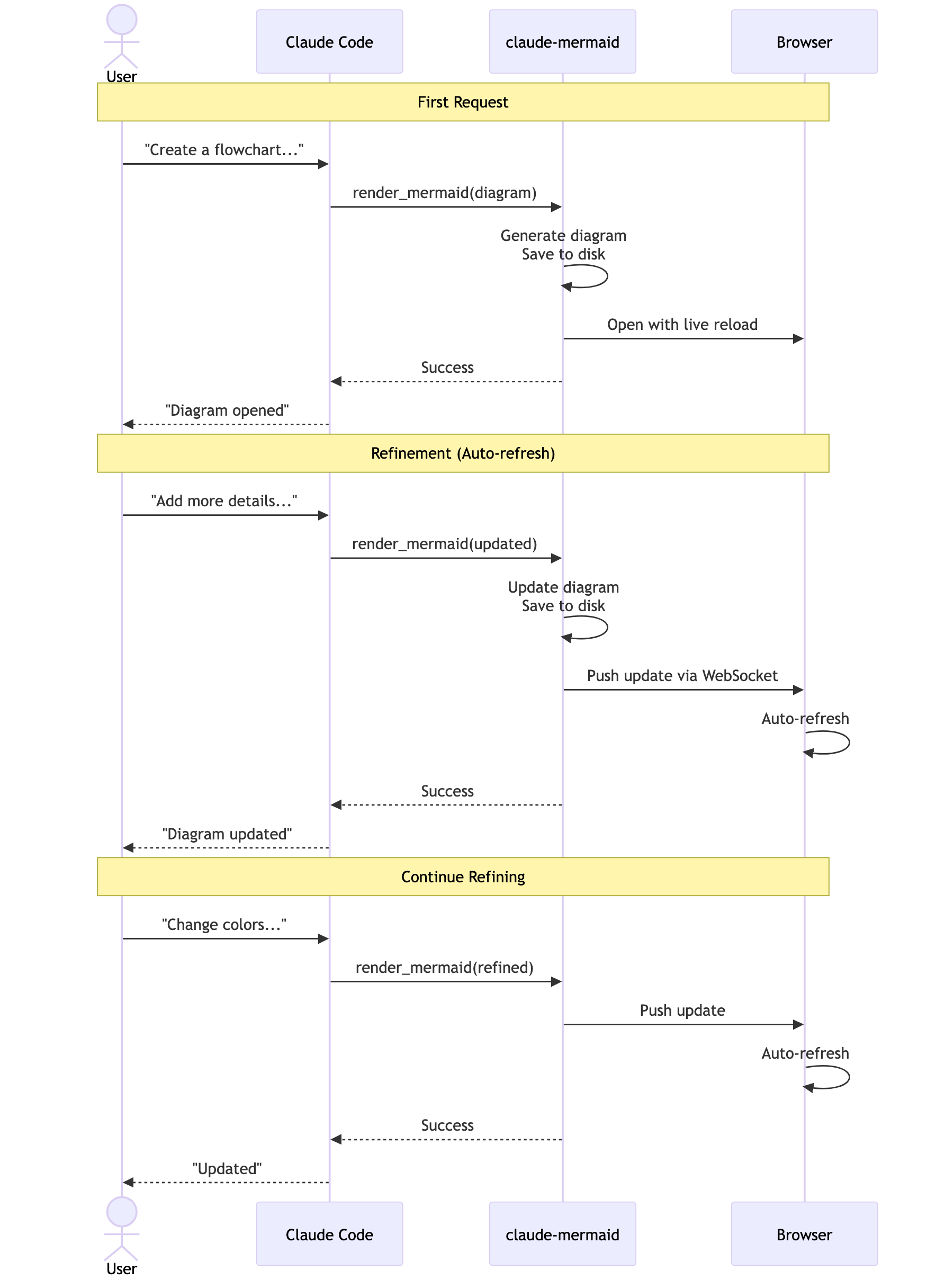
Iterative refinement:
"Create a class diagram for the User module"
// Browser opens with live preview
"Add the Address and Order classes with relationships"
// Diagram updates automatically in browser!
Complete Example
"Create a flowchart and save to ./docs/auth-flow.svg:

graph LR
    A[User Login] --> B{Valid Credentials?}
    B -->|Yes| C[Access Granted]
    B -->|No| D[Access Denied]
    C --> E[Dashboard]
    D --> F[Try Again]

    style A fill:#e1f5ff
    style C fill:#d4edda
    style D fill:#f8d7da
"
The diagram will be saved to ./docs/auth-flow.svg and opened in your browser with live reload enabled.
🔧 Tools and Parameters
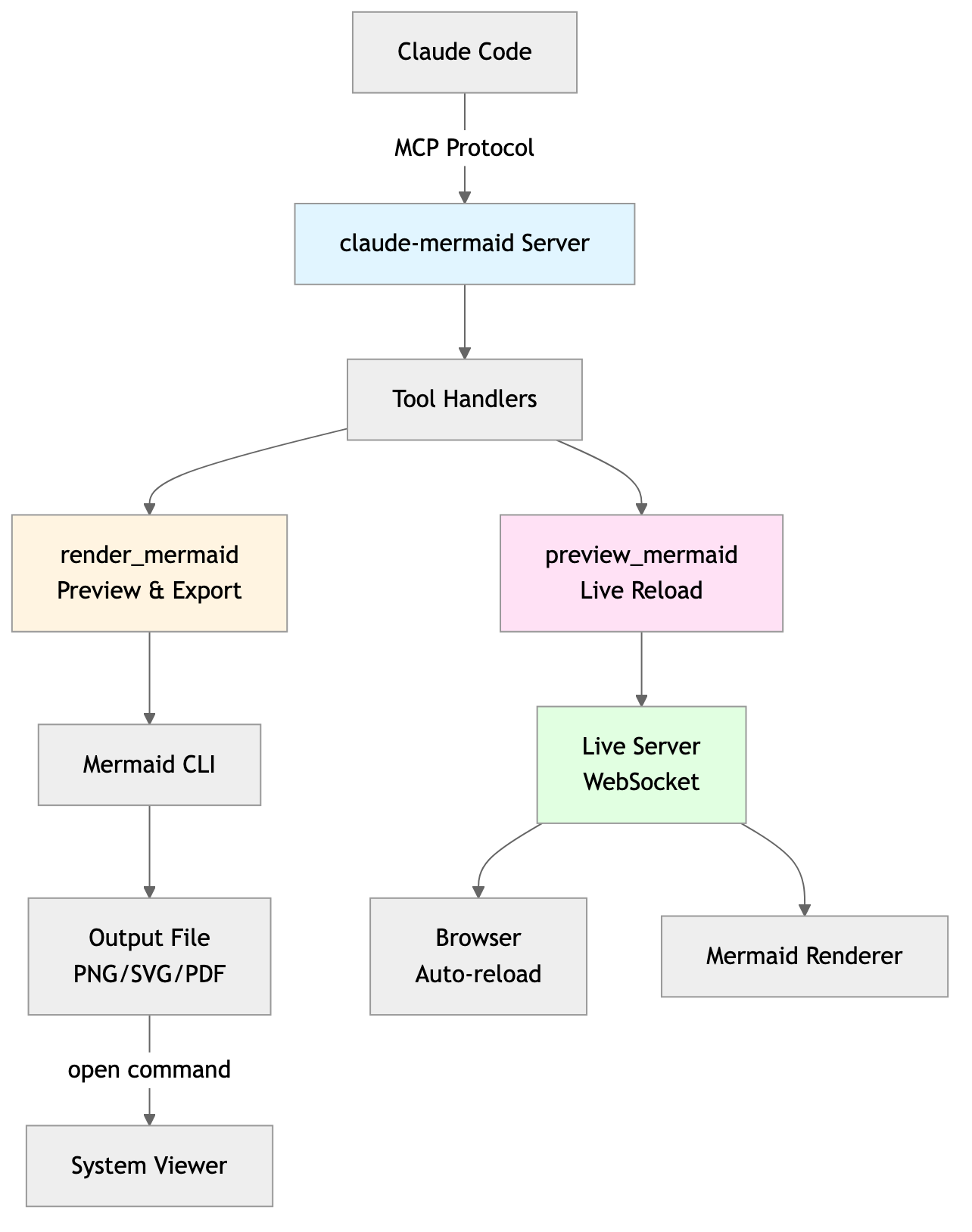
There are two tools exposed by the MCP server:
mermaid_preview— render and open a live preview
diagram(string, required) — Mermaid diagram codepreview_id(string, required) — Identifier for this preview session. Use different IDs for multiple concurrent diagrams (e.g.,architecture,flow).format(string, defaultsvg) — One ofsvg,png,pdf. Live preview is available only forsvg.theme(string, defaultdefault) — One ofdefault,forest,dark,neutral.background(string, defaultwhite) — Background color. Examples:transparent,white,#F0F0F0.width(number, default800) — Diagram width in pixels.height(number, default600) — Diagram height in pixels.scale(number, default2) — Scale factor for higher quality output.
mermaid_save— save the current live diagram to a path
save_path(string, required) — Destination path (e.g.,./docs/diagram.svg).preview_id(string, required) — Must match thepreview_idused inmermaid_preview.format(string, defaultsvg) — One ofsvg,png,pdf. If the live working file for this format doesn’t exist yet, it is rendered on demand before saving.
🎯 How Live Reload Works
- First render: Opens diagram in browser at
http://localhost:3737/{preview_id} - Make changes: Edit the diagram through Claude Code
- Auto-refresh: Browser detects changes via WebSocket and reloads
- Status indicator: Green dot = connected, Red dot = reconnecting
The live server uses ports 3737-3747 and automatically finds an available port.
Live Preview Controls
- Pan: Click and drag the diagram to move it around
- Zoom: Use browser zoom (Ctrl/Cmd + +/- or pinch-to-zoom on trackpad)
- Reset Position: Click the ⊙ button in the status bar to recenter the diagram
Notes
- Live preview is available for
svgformat only; PNG/PDF are rendered without live reload. - For sequence diagrams, Mermaid does not support
styledirectives insidesequenceDiagram.
🛠️ Development
# Install dependencies
npm install

# Build the project
npm run build

# Run tests
npm test

# Watch mode for development
npm run dev

# Start the MCP server directly
npm start
📝 Troubleshooting
Error: Cannot find package 'puppeteer':
This is a rare environment-specific issue. Try these solutions:
-
Install claude-mermaid globally:
npm install -g claude-mermaid -
Reinstall the plugin in Claude Code:
/plugin uninstall claude-mermaid
/plugin install claude-mermaid@claude-mermaid
Server not connecting:
# Check if server is installed
claude-mermaid -v

# Reinstall if needed
npm install -g claude-mermaid

# Verify MCP configuration
claude mcp list
Permission denied error:
# Make sure the binary is executable
chmod +x $(which claude-mermaid)
Port already in use:
- The server uses ports 3737-3747
- It will automatically find an available port
- Check if another process is using these ports:
lsof -i :3737-3747
Diagrams not rendering or live reload not working:
The server logs to ~/.config/claude-mermaid/logs/:
mcp.log- Tool requests and diagram renderingweb.log- HTTP/WebSocket connections and live reload
Enable debug logging in your MCP config:
{
  "mcpServers": {
    "mermaid": {
      "command": "claude-mermaid",
      "env": {
        "CLAUDE_MERMAID_LOG_LEVEL": "DEBUG"
      }
    }
  }
}
Then check the logs:
# View MCP operations
tail -f ~/.config/claude-mermaid/logs/mcp.log

# View WebSocket connections
tail -f ~/.config/claude-mermaid/logs/web.log
Available log levels: DEBUG, INFO (default), WARN, ERROR, OFF
🤝 Contributing
Contributions are welcome! Please feel free to submit a Pull Request.
📄 License
MIT - see LICENSE file for details
🔗 Links
Claude Mermaid Reviews
Login Required
Please log in to share your review and rating for this MCP.
Similar MCP Servers like Claude Mermaid
Explore related MCPs that share similar capabilities and solve comparable challenges
Headroom
by headroomlabs-ai
Compress tool outputs, logs, files, RAG chunks, and conversation history before they reach the LLM, keeping answers identical while saving up to 95% of tokens for JSON payloads.
Git
Officialby modelcontextprotocol
A Model Context Protocol server for Git repository interaction and automation.
Zed
OfficialClientby zed-industries
A high‑performance, multiplayer code editor designed for speed and collaboration.
Everything
Officialby modelcontextprotocol
Model Context Protocol Servers
Time
Officialby modelcontextprotocol
A Model Context Protocol server that provides time and timezone conversion capabilities.
Cline
OfficialClientby cline
An autonomous coding assistant that can create and edit files, execute terminal commands, and interact with a browser directly from your IDE, operating step‑by‑step with explicit user permission.
Context7 MCP
Officialby upstash
Provides up-to-date, version‑specific library documentation and code examples directly inside LLM prompts, eliminating outdated information and hallucinated APIs.
Daytona
by daytonaio
Provides a secure, elastic infrastructure that creates isolated sandboxes for running AI‑generated code with sub‑90 ms startup, unlimited persistence, and OCI/Docker compatibility.
Continue
OfficialClientby continuedev
Enables faster shipping of code by integrating continuous AI agents across IDEs, terminals, and CI pipelines, offering chat, edit, autocomplete, and customizable agent workflows.