
Actors MCP Server
Officialby
Enables AI assistants to invoke any Apify Actor as a tool, providing real‑time web scraping, data extraction, and automation via the Model Context Protocol.
Actors MCP Server Overview
What is Actors MCP Server about?
The server bridges AI assistants with the vast catalog of Apify Actors, turning each Actor into an instantly callable tool. By exposing Actor input schemas as MCP tools, the AI can discover, select, and execute the appropriate Actor without manual integration.
How to use Actors MCP Server?
- Hosted HTTPS endpoint: Connect to
https://mcp.apify.com(or/ssefor legacy) and authenticate with an Apify API token or OAuth. This is the default for most clients like Claude.ai or VS Code. - Local stdio server: Run the package locally and pipe stdin/stdout to an MCP client.
export APIFY_TOKEN="<YOUR_APIFY_TOKEN>" npx @apify/actors-mcp-server - Add optional tool categories with the
--toolsflag (e.g.,--tools docs,runs,storage,preview). - Use any MCP‑compatible client (Claude Desktop, VS Code Genie, LibreChat, etc.) and start issuing tool calls such as
search-actors,call-actor, orget-dataset-items.
Key features of Actors MCP Server
- Dynamic tool discovery – Search the Apify Store, add Actors as tools on‑the‑fly, and list available actors.
- Pre‑configured default tools – Actor details, search, add, and the powerful
apify/slash-rag-web-browserfor web browsing. - Helper tool categories – Documentation search, run management, storage access (datasets, key‑value stores) and experimental preview tools.
- OAuth support – Seamless integration with clients that support OAuth authentication.
- Standard‑input/output mode – Ideal for local development, testing, and desktop clients.
- Configurable tool set – Enable/disable
docs,runs,storage, andpreviewvia command‑line or URL query.
Use cases of Actors MCP Server
- AI‑driven web research – An AI assistant queries the web, scrapes results with
rag‑web‑browser, and summarises findings. - Social media analytics – Retrieve posts, comments, and metrics from Facebook, Instagram, or Twitter actors.
- Contact extraction – Pull email and phone data from Google Maps listings.
- Custom data pipelines – Chain multiple Actors (scraping → transformation → storage) through a single AI‑driven workflow.
- On‑demand automation – Trigger any Apify automation (e.g., price monitoring, SEO audits) directly from a chat interface.
FAQ from the Actors MCP Server
Q: Do I need to host the server myself?
A: No. The hosted endpoint https://mcp.apify.com is ready to use. You can also run a local stdio server for private or offline scenarios.
Q: Which authentication methods are supported?
A: OAuth (recommended) and Bearer token via Authorization: Bearer <APIFY_TOKEN> header.
Q: Can I use rental Actors locally? A: Rental Actors are available only through the hosted server. Local stdio mode works with Actors already added to your toolset.
Q: How do I enable helper tools like storage access?
A: Pass the --tools docs,runs,storage,preview argument (or ?tools=... in the URL) to activate the desired categories.
Q: Which MCP clients are tested? A: Claude.ai (web), Claude Desktop, VS Code Genie, Apify Tester MCP Client, and others listed in the matrix.
Q: What Node.js version is required? A: Node 18 or higher.
Actors MCP Server's README
The Apify Model Context Protocol (MCP) server at mcp.apify.com enables your AI agents to extract data from social media, search engines, maps, e-commerce sites, or any other website using thousands of ready-made scrapers, crawlers, and automation tools available on the Apify Store.
🚀 Try the hosted Apify MCP Server!
For the easiest setup and most powerful features, including the ability to find and use any Actor from Apify Store, connect your AI assistant to our hosted server:
It supports OAuth, so you can connect from clients like Claude.ai or Visual Studio Code with just the URL.
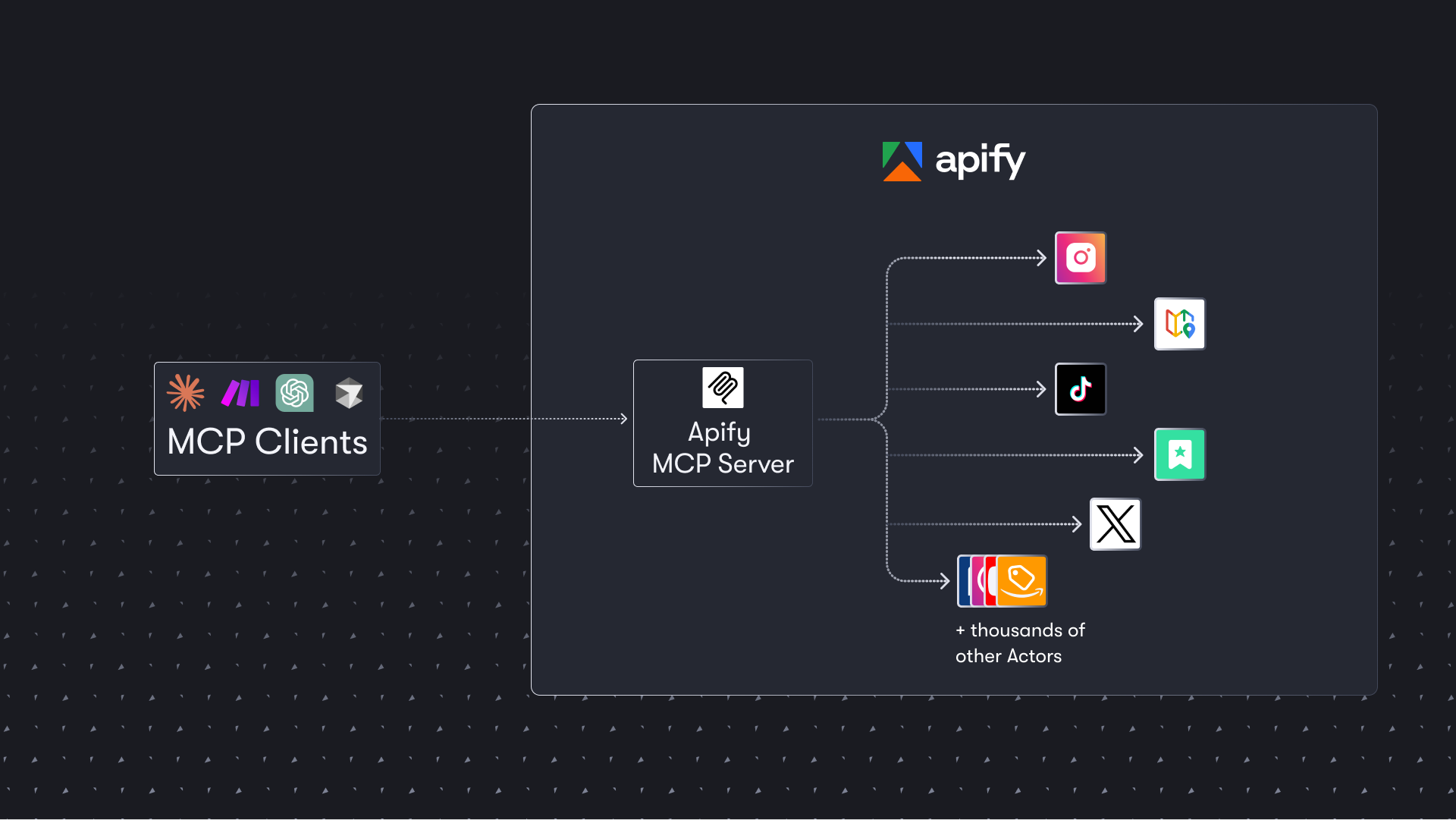
Table of Contents
- 🌐 Introducing the Apify MCP server
- 🚀 Quickstart
- 🤖 MCP clients and examples
- 🪄 Try Apify MCP instantly
- 🛠️ Tools, resources, and prompts
- 📊 Telemetry
- 🐛 Troubleshooting (local MCP server)
- ⚙️ Development
- 🤝 Contributing
- 📚 Learn more
🌐 Introducing the Apify MCP server
The Apify MCP Server allows an AI assistant to use any Apify Actor as a tool to perform a specific task. For example, it can:
- Use Facebook Posts Scraper to extract data from Facebook posts from multiple pages/profiles.
- Use Google Maps Email Extractor to extract contact details from Google Maps.
- Use Google Search Results Scraper to scrape Google Search Engine Results Pages (SERPs).
- Use Instagram Scraper to scrape Instagram posts, profiles, places, photos, and comments.
- Use RAG Web Browser to search the web, scrape the top N URLs, and return their content.
Video tutorial: Integrate 8,000+ Apify Actors and Agents with Claude

🚀 Quickstart
You can use the Apify MCP Server in two ways:
HTTPS Endpoint (mcp.apify.com): Connect from your MCP client via OAuth or by including the Authorization: Bearer <APIFY_TOKEN> header in your requests. This is the recommended method for most use cases. Because it supports OAuth, you can connect from clients like Claude.ai or Visual Studio Code using just the URL: https://mcp.apify.com.
https://mcp.apify.comstreamable transport
Standard Input/Output (stdio): Ideal for local integrations and command-line tools like the Claude for Desktop client.
- Set the MCP client server command to
npx @apify/actors-mcp-serverand theAPIFY_TOKENenvironment variable to your Apify API token. - See
npx @apify/actors-mcp-server --helpfor more options.
You can find detailed instructions for setting up the MCP server in the Apify documentation.
🤖 MCP clients
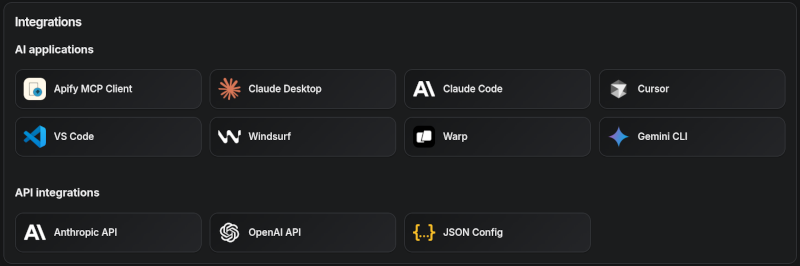
Apify MCP Server is compatible with any MCP client that adheres to the Model Context Protocol, but the level of support for dynamic tool discovery and other features may vary between clients.
To interact with the Apify MCP server, you can use clients such as: Claude Desktop, Visual Studio Code, or Apify Tester MCP Client.
Visit mcp.apify.com to configure the server for your preferred client.
Supported clients matrix
The following table outlines the tested MCP clients and their level of support for key features.
| Client | Dynamic Tool Discovery | Notes |
|---|---|---|
| Claude.ai (web) | 🟡 Partial | Tools mey need to be reloaded manually in the client |
| Claude Desktop | 🟡 Partial | Tools may need to be reloaded manually in the client |
| VS Code (Genie) | ✅ Full | |
| Cursor | ✅ Full | |
| Apify Tester MCP Client | ✅ Full | Designed for testing Apify MCP servers |
| OpenCode | ✅ Full |
Smart tool selection based on client capabilities:
When the actors tool category is requested, the server intelligently selects the most appropriate Actor-related tools based on the client's capabilities:
-
Clients with dynamic tool support (e.g., Claude.ai web, VS Code Genie): The server provides the
add-actortool instead ofcall-actor. This allows for a better user experience where users can dynamically discover and add new Actors as tools during their conversation. -
Clients with limited dynamic tool support (e.g., Claude Desktop): The server provides the standard
call-actortool along with other Actor category tools, ensuring compatibility while maintaining functionality.
🪄 Try Apify MCP instantly
Want to try Apify MCP without any setup?
Check out Apify Tester MCP Client
This interactive, chat-like interface provides an easy way to explore the capabilities of Apify MCP without any local setup. Just sign in with your Apify account and start experimenting with web scraping, data extraction, and automation tools!
Or use the MCP bundle file (formerly known as Anthropic Desktop extension file, or DXT) for one-click installation: Apify MCP server MCPB file
🛠️ Tools, resources, and prompts
The MCP server provides a set of tools for interacting with Apify Actors. Since the Apify Store is large and growing rapidly, the MCP server provides a way to dynamically discover and use new Actors.
Actors
Any Apify Actor can be used as a tool.
By default, the server is pre-configured with one Actor, apify/rag-web-browser, and several helper tools.
The MCP server loads an Actor's input schema and creates a corresponding MCP tool.
This allows the AI agent to know exactly what arguments to pass to the Actor and what to expect in return.
For example, for the apify/rag-web-browser Actor, the input parameters are:
{
  "query": "restaurants in San Francisco",
  "maxResults": 3
}
You don't need to manually specify which Actor to call or its input parameters; the LLM handles this automatically. When a tool is called, the arguments are automatically passed to the Actor by the LLM. You can refer to the specific Actor's documentation for a list of available arguments.
Helper tools
One of the most powerful features of using MCP with Apify is dynamic tool discovery. It gives an AI agent the ability to find new tools (Actors) as needed and incorporate them. Here are some special MCP operations and how the Apify MCP Server supports them:
- Apify Actors: Search for Actors, view their details, and use them as tools for the AI.
- Apify documentation: Search the Apify documentation and fetch specific documents to provide context to the AI.
- Actor runs: Get lists of your Actor runs, inspect their details, and retrieve logs.
- Apify storage: Access data from your datasets and key-value stores.
Overview of available tools
Here is an overview list of all the tools provided by the Apify MCP Server.
| Tool name | Category | Description | Enabled by default |
|---|---|---|---|
search-actors |
actors | Search for Actors in the Apify Store. | ✅ |
fetch-actor-details |
actors | Retrieve detailed information about a specific Actor. | ✅ |
call-actor* |
actors | Call an Actor and get its run results. | ❔ |
apify-slash-rag-web-browser |
Actor (see tool configuration) | An Actor tool to browse the web. | ✅ |
search-apify-docs |
docs | Search the Apify documentation for relevant pages. | ✅ |
fetch-apify-docs |
docs | Fetch the full content of an Apify documentation page by its URL. | ✅ |
get-actor-run |
runs | Get detailed information about a specific Actor run. | |
get-actor-run-list |
runs | Get a list of an Actor's runs, filterable by status. | |
get-actor-log |
runs | Retrieve the logs for a specific Actor run. | |
get-dataset |
storage | Get metadata about a specific dataset. | |
get-dataset-items |
storage | Retrieve items from a dataset with support for filtering and pagination. | |
get-dataset-schema |
storage | Generate a JSON schema from dataset items. | |
get-key-value-store |
storage | Get metadata about a specific key-value store. | |
get-key-value-store-keys |
storage | List the keys within a specific key-value store. | |
get-key-value-store-record |
storage | Get the value associated with a specific key in a key-value store. | |
get-dataset-list |
storage | List all available datasets for the user. | |
get-key-value-store-list |
storage | List all available key-value stores for the user. | |
add-actor* |
experimental | Add an Actor as a new tool for the user to call. | ❔ |
get-actor-output* |
- | Retrieve the output from an Actor call which is not included in the output preview of the Actor tool. | ✅ |
Note:
When using the
actorstool category, clients that support dynamic tool discovery (like Claude.ai web and VS Code) automatically receive theadd-actortool instead ofcall-actorfor enhanced Actor discovery capabilities.
The
get-actor-outputtool is automatically included with any Actor-related tool, such ascall-actor,add-actor, or any specific Actor tool likeapify-slash-rag-web-browser. When you call an Actor - either through thecall-actortool or directly via an Actor tool (e.g.,apify-slash-rag-web-browser) - you receive a preview of the output. The preview depends on the Actor's output format and length; for some Actors and runs, it may include the entire output, while for others, only a limited version is returned to avoid overwhelming the LLM. To retrieve the full output of an Actor run, use theget-actor-outputtool (supports limit, offset, and field filtering) with thedatasetIdprovided by the Actor call.
Tool annotations
All tools include metadata annotations to help MCP clients and LLMs understand tool behavior:
title: Short display name for the tool (e.g., "Search Actors", "Call Actor", "apify/rag-web-browser")readOnlyHint:truefor tools that only read data without modifying state (e.g.,get-dataset,fetch-actor-details)openWorldHint:truefor tools that access external resources outside the Apify platform (e.g.,call-actorexecutes external Actors,get-html-skeletonscrapes external websites). Tools that interact only with the Apify platform (likesearch-actorsorfetch-apify-docs) do not have this hint.
Tools configuration
The tools configuration parameter is used to specify loaded tools - either categories or specific tools directly, and Apify Actors. For example, tools=storage,runs loads two categories; tools=add-actor loads just one tool.
When no query parameters are provided, the MCP server loads the following tools by default:
actorsdocsapify/rag-web-browser
If the tools parameter is specified, only the listed tools or categories will be enabled - no default tools will be included.
Easy configuration:
Use the UI configurator to configure your server, then copy the configuration to your client.
Configuring the hosted server:
The hosted server can be configured using query parameters in the URL. For example, to load the default tools, use:
https://mcp.apify.com?tools=actors,docs,apify/rag-web-browser
For minimal configuration, if you want to use only a single Actor tool - without any discovery or generic calling tools, the server can be configured as follows:
https://mcp.apify.com?tools=apify/my-actor
This setup exposes only the specified Actor (apify/my-actor) as a tool. No other tools will be available.
Configuring the CLI:
The CLI can be configured using command-line flags. For example, to load the same tools as in the hosted server configuration, use:
npx @apify/actors-mcp-server --tools actors,docs,apify/rag-web-browser
The minimal configuration is similar to the hosted server configuration:
npx @apify/actors-mcp-server --tools apify/my-actor
As above, this exposes only the specified Actor (apify/my-actor) as a tool. No other tools will be available.
⚠️ Important recommendation
The default tools configuration may change in future versions. When no
toolsparameter is specified, the server currently loads default tools, but this behavior is subject to change.For production use and stable interfaces, always explicitly specify the
toolsparameter to ensure your configuration remains consistent across updates.
Backward compatibility
The v2 configuration preserves backward compatibility with v1 usage. Notes:
actorsparam (URL) and--actorsflag (CLI) are still supported.- Internally they are merged into
toolsselectors. - Examples:
?actors=apify/rag-web-browser≡?tools=apify/rag-web-browser;--actors apify/rag-web-browser≡--tools apify/rag-web-browser.
- Internally they are merged into
enable-adding-actors(CLI) andenableAddingActors(URL) are supported but deprecated.- Prefer
tools=experimentalor including the specific tooltools=add-actor. - Behavior remains: when enabled with no
toolsspecified, the server exposes onlyadd-actor; when categories/tools are selected,add-actoris also included.
- Prefer
enableActorAutoLoadingremains as a legacy alias forenableAddingActorsand is mapped automatically.- Defaults remain compatible: when no
toolsare specified, the server loadsactors,docs, andapify/rag-web-browser.- If any
toolsare specified, the defaults are not added (same as v1 intent for explicit selection).
- If any
call-actoris now included by default via theactorscategory (additive change). To exclude it, specify an explicittoolslist withoutactors.previewcategory is deprecated and removed. Use specific tool names instead.
Existing URLs and commands using ?actors=... or --actors continue to work unchanged.
Prompts
The server provides a set of predefined example prompts to help you get started interacting with Apify through MCP. For example, there is a GetLatestNewsOnTopic prompt that allows you to easily retrieve the latest news on a specific topic using the RAG Web Browser Actor.
Resources
The server does not yet provide any resources.
📡 Telemetry
The Apify MCP Server collects telemetry data about tool calls to help Apify understand usage patterns and improve the service. By default, telemetry is enabled for all tool calls.
Opting out of telemetry
You can opt out of telemetry by setting the --telemetry-enabled CLI flag to false or the TELEMETRY_ENABLED environment variable to false.
CLI flags take precedence over environment variables.
Examples
For the remote server (mcp.apify.com):
# Disable via URL parameter
https://mcp.apify.com?telemetry-enabled=false
For the local stdio server:
# Disable via CLI flag
npx @apify/actors-mcp-server --telemetry-enabled=false

# Or set environment variable
export TELEMETRY_ENABLED=false
npx @apify/actors-mcp-server
⚙️ Development
Prerequisites
- Node.js (v18 or higher)
Create an environment file, .env, with the following content:
APIFY_TOKEN="your-apify-token"
Build the actor-mcp-server package:
npm run build
Start HTTP streamable MCP server
Run using Apify CLI:
export APIFY_TOKEN="your-apify-token"
export APIFY_META_ORIGIN=STANDBY
apify run -p
Once the server is running, you can use the MCP Inspector to debug the server exposed at http://localhost:3001.
Start standard input/output (stdio) MCP server
You can launch the MCP Inspector with this command:
export APIFY_TOKEN="your-apify-token"
npx @modelcontextprotocol/inspector node ./dist/stdio.js
Upon launching, the Inspector will display a URL that you can open in your browser to begin debugging.
🐦 Canary PR releases
Apify MCP is split across two repositories: this one for core MCP logic and the private apify-mcp-server-internal for the hosted server.
Changes must be synchronized between both.
To create a canary release, add the beta tag to your PR branch.
This publishes the package to pkg.pr.new for staging and testing before merging.
See the workflow file for details.
🐋 Docker Hub integration
The Apify MCP Server is also available on Docker Hub, registered via the mcp-registry repository. The entry in servers/apify-mcp-server/server.yaml should be deployed automatically by the Docker Hub MCP registry (deployment frequency is unknown). Before making major changes to the stdio server version, be sure to test it locally to ensure the Docker build passes. To test, change the source.branch to your PR branch and run task build -- apify-mcp-server. For more details, see CONTRIBUTING.md.
🐛 Troubleshooting (local MCP server)
- Make sure you have
nodeinstalled by runningnode -v. - Make sure the
APIFY_TOKENenvironment variable is set. - Always use the latest version of the MCP server by using
@apify/actors-mcp-server@latest.
Debugging the NPM package
To debug the server, use the MCP Inspector tool:
export APIFY_TOKEN="your-apify-token"
npx @modelcontextprotocol/inspector npx -y @apify/actors-mcp-server
💡 Limitations
The Actor input schema is processed to be compatible with most MCP clients while adhering to JSON Schema standards. The processing includes:
- Descriptions are truncated to 500 characters (as defined in
MAX_DESCRIPTION_LENGTH). - Enum fields are truncated to a maximum combined length of 2000 characters for all elements (as defined in
ACTOR_ENUM_MAX_LENGTH). - Required fields are explicitly marked with a
REQUIREDprefix in their descriptions for compatibility with frameworks that may not handle the JSON schema properly. - Nested properties are built for special cases like proxy configuration and request list sources to ensure the correct input structure.
- Array item types are inferred when not explicitly defined in the schema, using a priority order: explicit type in items > prefill type > default value type > editor type.
- Enum values and examples are added to property descriptions to ensure visibility, even if the client doesn't fully support the JSON schema.
- Rental Actors are only available for use with the hosted MCP server at https://mcp.apify.com. When running the server locally via stdio, you can only access Actors that are already added to your local toolset. To dynamically search for and use any Actor from the Apify Store—including rental Actors—connect to the hosted endpoint.
🤝 Contributing
We welcome contributions to improve the Apify MCP Server! Here's how you can help:
- 🐛 Report issues: Find a bug or have a feature request? Open an issue.
- 🔧 Submit pull requests: Fork the repo and submit pull requests with enhancements or fixes.
- 📚 Documentation: Improvements to docs and examples are always welcome.
- 💡 Share use cases: Contribute examples to help other users.
For major changes, please open an issue first to discuss your proposal and ensure it aligns with the project's goals.
📚 Learn more
Actors MCP Server Reviews
Login Required
Please log in to share your review and rating for this MCP.
Similar MCP Servers like Actors MCP Server
Explore related MCPs that share similar capabilities and solve comparable challenges
Sequential Thinking
Officialby modelcontextprotocol
An MCP server implementation that provides a tool for dynamic and reflective problem-solving through a structured thinking process.
LibreChat
OfficialClientby danny-avila
Provides a self‑hosted ChatGPT‑style interface supporting numerous AI models, agents, code interpreter, image generation, multimodal interactions, and secure multi‑user authentication.
Goose
by block
Automates engineering tasks on local machines, executing code, building projects, debugging, orchestrating workflows, and interacting with external APIs using any LLM.
Roo Code
OfficialClientby RooCodeInc
Provides an autonomous AI coding partner inside the editor that can understand natural language, manipulate files, run commands, browse the web, and be customized via modes and instructions.
Pydantic AI
by pydantic
A Python framework that enables seamless integration of Pydantic validation with large language models, providing type‑safe agent construction, dependency injection, and structured output handling.
Mcp Use
Clientby mcp-use
A Python SDK that simplifies interaction with MCP servers and enables developers to create custom agents with tool‑calling capabilities.
Mcp Agent
Clientby lastmile-ai
Build effective agents using Model Context Protocol and simple, composable workflow patterns.
Klavis AI
Officialby Klavis-AI
Provides production‑ready MCP servers and a hosted service for integrating AI applications with over 50 third‑party services via standardized APIs, OAuth, and easy Docker or hosted deployment.
5ire
Clientby nanbingxyz
A cross‑platform desktop AI assistant that connects to major LLM providers, supports a local knowledge base, and enables tool integration via MCP servers.